With the growth of your WordPress site, it’s important to implement a clear content structure that helps visitors to find related content with ease and speed.
This is where taxonomies are beneficial.
A taxonomy is a system for grouping similar content. Instead of putting everything into one long list, WordPress lets you categorize posts and other content into meaningful groups.
By default, WordPress includes two taxonomies: Categories and Tags.
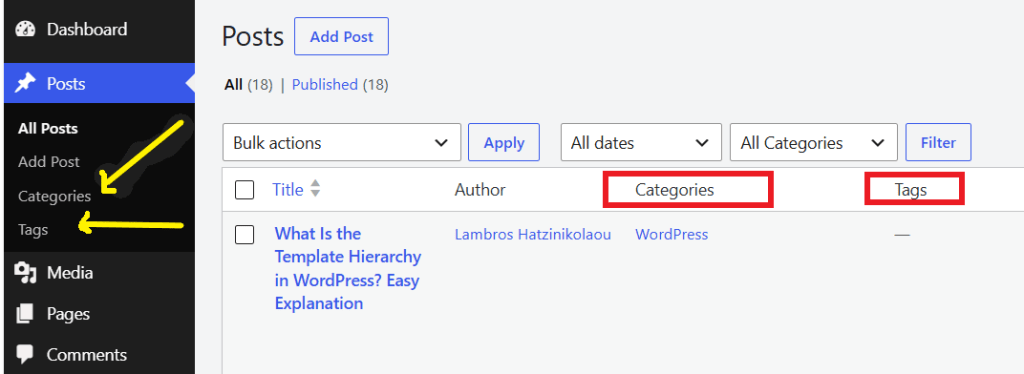
Categories help to group content into general topics.
For example, a technology blog might use categories such as:
- Tutorials
- Reviews
- News
Each article typically fits into one or more categories, which allows visitors to easily find related posts.
Tags, on the other hand, serve a different purpose. They highlight specific aspects of a post.
Taxonomies and Custom Post Types
Custom Post Types and taxonomies are often introduced together. The former defines the type of content, while the latter defines how that content is organized.
For example, suppose your website contains a Custom Post Type called Books.
You might create custom taxonomies such as:
- Authors
- Genres
- Publishers
Each book can belong to one or more terms within those taxonomies, making it much easier for visitors to browse your collection.
When Should You Create a Custom Taxonomy?
If your content needs to be grouped by something other than categories or tags, consider creating a custom taxonomy.
For example, an events website might group events by location, while a restaurant website could organize menu items by cuisine. These groups are specific to the content type and would not fit well as standard categories.
You create a custom taxonomy using the register_taxonomy() function. This is typically done inside the init hook, just like you register a Custom Post Type with register_post_type().
For example, suppose you already have a Custom Post Type called book.
You can create an Authors taxonomy like this:
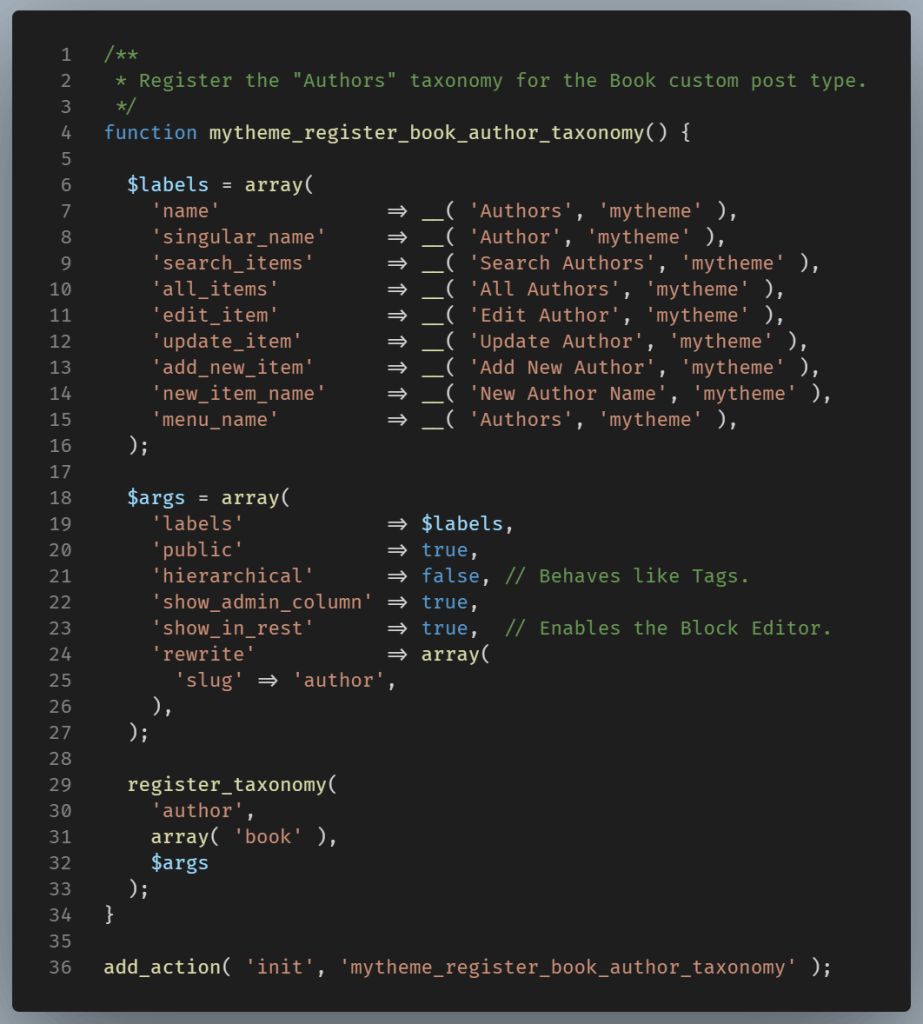
Note: Here, hierarchical (line 21), is set to false. This determines how the taxonomy behaves. An author doesn't usually have child authors, so this is the common choice.
What happens after this?
In the WordPress admin, you’ll see:
Books
├── All Books
├── Add New
└── Authors
When editing a book, you’ll be able to assign one or more authors, just as you assign tags to a post.
With a custom taxonomy, WordPress knows that e.g. “Charlotte Brontë” is a reusable term linked to multiple books. This means it can automatically create an archive page listing every book by that author: example.com/author/charlotte-bronte/
Wrapping Up
Taxonomies help organize content so that both visitors and site owners can find information more easily.
While most websites utilize categories and tags, custom taxonomies offer additional flexibility, especially when dealing with more specialized content.