In the past, adding video to a web page required the use of additional plugins. Nowadays, with HTML5, developers can easily embed video directly into a page. The main tag for this job is <video> that creates the video player. The <source> tag then tells the browser where the video file is and what type of file it should expect.
Together, these two tags make video easier to control and style across different browsers.
The Basic <video> Tag
A simple video player looks like this:
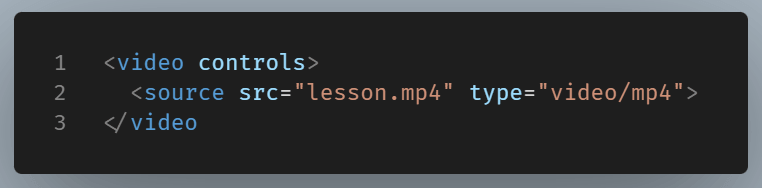
The controls attribute is important. It gives users play, pause, volume, and timeline controls.
Without it, the video will appear on the page but there will be no clear way to interact with it.
The <source> tag points to the video file. In this case, the file is lesson.mp4, and the type is video/mp4.
Why Use the <source> Tag?
The <source> tag becomes useful when you provide more than one video format. Browsers do not always support every format in the same way. By listing multiple sources, you let the browser choose the first one it can play.
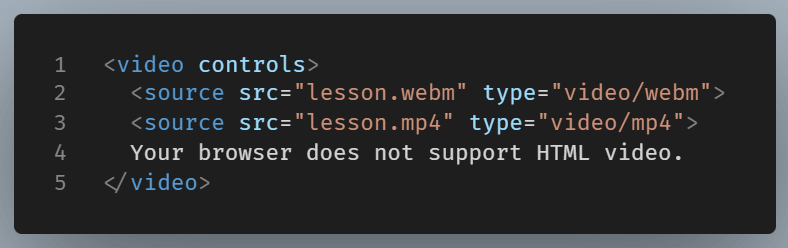
The fallback text appears only if the browser cannot play the video at all.
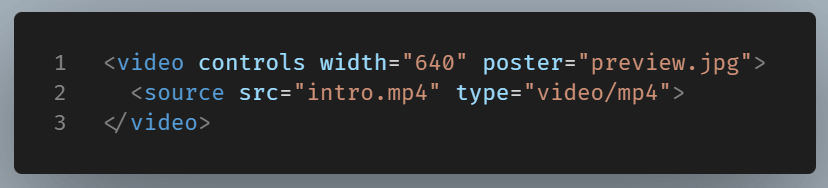
The <video> tag supports several practical attributes:
postershows an image before the video start playingwidthandheightdefine the player sizemutedstarts the video without soundlooprepeats the videopreloadgives the browser loading guidance
Example:
Regarding Auto Play
Browsers often block videos that auto play with sound. If you need auto play, the video usually must be muted.
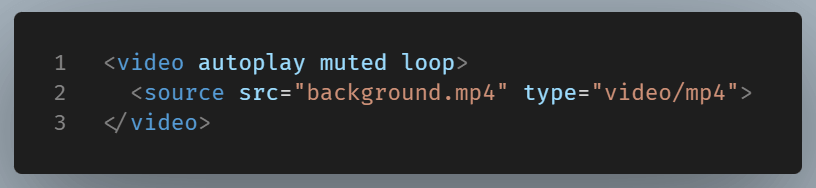
NOTE: Use this carefully. Background video can look good, but it can also slow down a page and distract users.
A note on src attribute
When a <video> tag has a src attribute, the browser uses that attribute and ignores entirely all <source> child elements. The <source> elements are only a fallback mechanism for when no src attribute is present on the <video> tag itself.
So the order of precedence is:
<video src="...">— Here thesrcattribute is used immediately and<source>children are skipped<source>elements — Source elements are only consulted when<video>has nosrcattribute
The <source> element’s main purpose is to provide multiple format fallbacks, like:
Be alert for this buggy behavior
An empty src attribute is considered valid and the browser will try to load it. Since no URL is provided (empty) it will load no video at all without any warning (fail silently).

Final Thought
The <video> tag is what creates the player, while the <source> tag is responsible for providing the media file. Once you understand this relationship, working with HTML <video> becomes much simpler.
Start by including controls, use clear file types, provide fallback text, and only add extra features when absolutely necessary.