When you start writing CSS for a new project, your styles don’t always behave the way you expect. For example, lists may come with indents, and buttons can look different across browsers. That’s because browsers apply their own default styles. And every browser’s defaults vary.
This is where a CSS reset comes in.
So, what is a CSS reset?
A CSS reset is a set of rules that “wipes out” or normalizes those browser defaults. It makes everything equal so that your website looks the same, no matter which browser people use.
Think of it like cleaning the whiteboard before you start sketching.
Common reset examples
There are many styles that developers commonly reset or normalize:
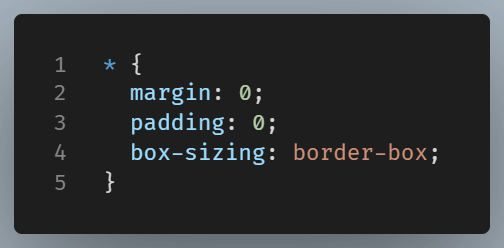
You might also see resets that target HTML elements more specifically:

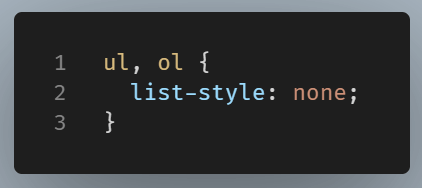
Note: Use a reset like this with care, as removing list-style can impact accessibility if lists convey important structure.
Some developers use full reset libraries like Normalize.css. These go further by removing borders, fixing font inheritance, and ironing out inconsistencies between browsers like Chrome, Firefox, and Safari.
Why Resets Can Hurt Accessibility
Browsers apply default styles not just for aesthetics. They also help with readability, navigation, anduser experience in general. A reset that wipes out too much can unintentionally remove:
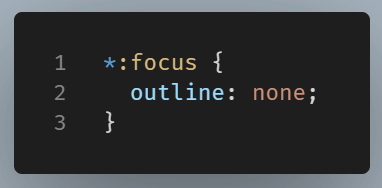
- Focus outlines — Essential for keyboard users to know where they are
- List styles — Helpful for screen readers to understand structured content
- Form element spacing — Affects touch targets and readability
- Line height and font sizes — Can harm readability, especially for low-vision users
Common Reset Mistakes That Hurt Accessibility
Here are a few real-world examples:
Removes the visible focus ring:
Unstyle lists:
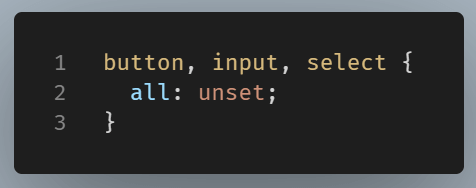
Removes all native styles and behaviors:
How to Reset Without Breaking Accessibility
You don’t need to get rid of resets, but use them carefully.
- Keep focus outlines or replace them with clear, visible alternatives:
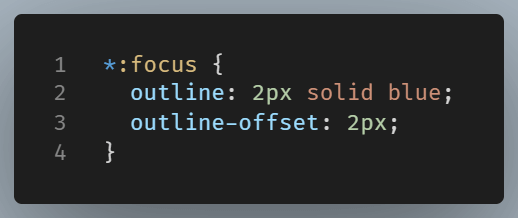
- Reset list styles only when appropriate, like in navigation menus, but not in content blocks.
- Avoid using
all: unsetunless you’re prepared to rebuild the accessibility features manually. - Test with a keyboard (Tab through the page) and screen reader tools to ensure your reset doesn’t hide key interactions.
Wrapping Up
Without a reset, your layout might look one way in Chrome and completely different in Firefox. That’s not a bug—it’s the browser implementing its own default styles. A reset lets you take control, starting from a blank canvas.