The wp-config.php file holds your database details, security keys, and several settings that keep your site running. When it’s exposed, everything else becomes vulnerable. The great thing is that protecting it is quite simple. You just need a few practical steps.
In this post we’re going to be talking about using the correct file permissions as a means of protecting the wp-config file. There are many other steps we want to take in order to secure it, like moving it one level up or add rules to the htaccess file that we are going to examine in next tips.
Use correct file permissions
Permissions control who can read or edit files on your server.
For wp-config, a safe setting is 400 or 440. This prevents other users on the server from opening it.
You can adjust permissions through your hosting panel, command line, or an FTP client.
What “file permissions” really mean
On a server, every file has a set of permissions that control who can read it, who can write to it, and who can execute it. These permissions are represented by three numbers, like 644, 440, or 400.
Each digit controls a different group:
• The first digit is for the owner
• The second is for the group
• The third is for everyone else
For a sensitive file like wp-config.php, the goal is to enable only the server to read it and block access to anyone else.
The safest common settings
Most hosting environments work well with one of these:
400 – Only the owner can read the file. No one else can read, write, or execute it.
440 – The owner and the group can read the file. No writing or executing allowed.
444 – Everyone can read the file, but no one can write or execute it. This is less strict, but still blocks editing.
For most WordPress sites, 400 or 440 is ideal. It prevents other users on the same server from snooping around.
How to change permissions
You can adjust permissions through:
• Your hosting control panel (usually a right‑click menu)
• An FTP client like FileZilla
• SSH, if you’re comfortable with commands
Let’s see them one by one.
Adjusting permissions in an FTP client:
In FileZilla, for example:
1. Right‑click on the file you want, wp-config.php in our case
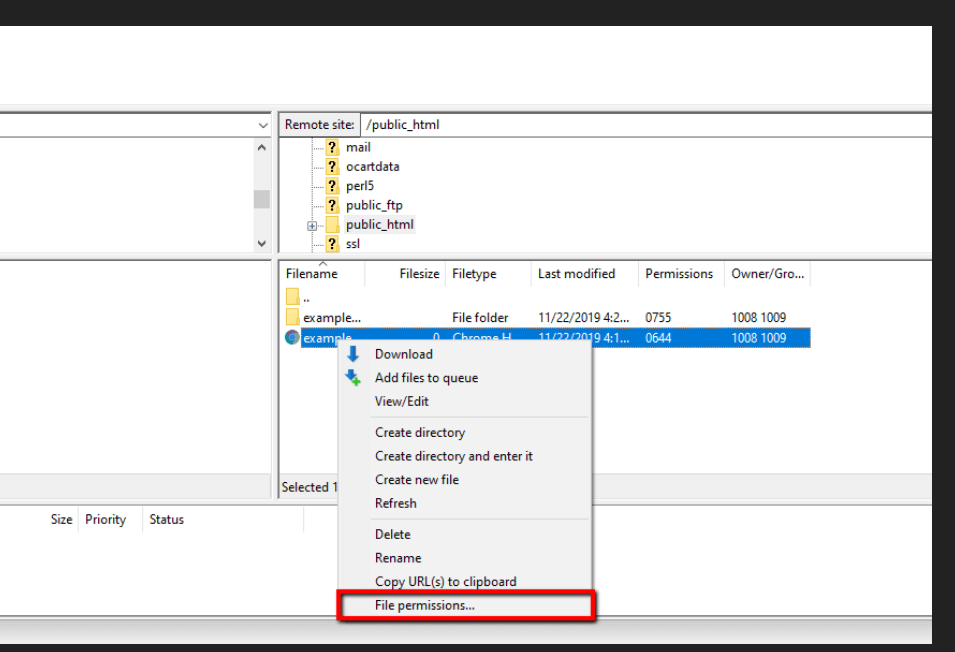
2. Choose File permissions
3. Enter 400 or 440

4. Save
Changing File Permissions in cPanel
Accessing File Manager:
1. Visit your cPanel account.
2. Locate the File Manager icon under the Files section.
3. Click on File Manager to open it.
Modifying Permissions:
1. Navigate to the file or directory you want to change.
2. Right-click on the file or directory name.
3. Select Change Permissions from the context menu.
Setting Permissions:
You will see a window with checkboxes for different permissions:
◦ Read: Allows viewing the file.
◦ Write: Allows modifying the file.
◦ Execute: Allows running the file as a program.
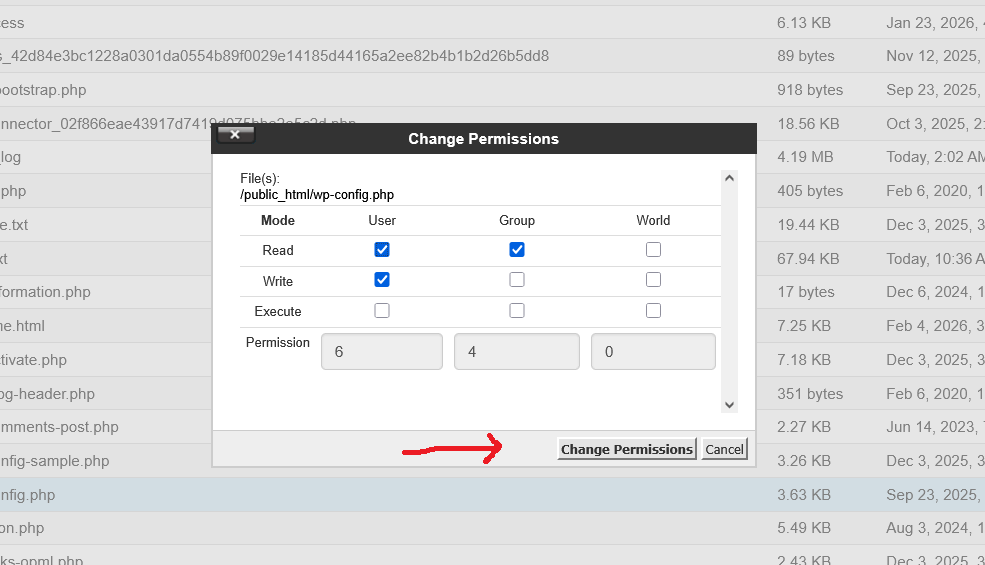
Finalizing Changes:
1. After selecting the desired permissions, click Change Permissions to apply the changes.
2. Ensure that you do not set overly permissive permissions to maintain security.
By following these steps, you can effectively manage file permissions in your cPanel account.
Changing permissions from the command line
Changing file permissions from the command line is simple once you know the basic commands. You don’t need deep Linux knowledge to do it.
If you want to tighten permissions, you can use the chmod command.
Set permissions to 400chmod 400 wp-config.php. This means only the owner can read it.
Set permissions to 440chmod 440 wp-config.php. This allows the owner and group to read it.
Set permissions to 444chmod 444 wp-config.php. This allows everyone to read it but prevents writing. It’s less strict but still blocks editing.
Confirm the changels -l wp-config.php. You’ll see the updated permissions reflected immediately.
Note: If your site breaks after setting permissions to 400, your host may require slightly looser settings. In that case, try 440 or 444. Different hosting environments behave differently, so it’s normal to test once or twice.
Why changing permissions matter
If permissions are too loose, someone could:
• Read your database password
• Modify the file
• Inject malicious code
• Break your site entirely
Tight permissions prevent these scenarios by limiting who can even see the file.
It takes seconds to make permissions tight, but it closes a major security gap. By implementing the right permissions, you’re dramatically reducing risk.