In the previous post we talked about some very usefull VS Code extensions that can help boost your coding efficiency and improve your development.
Today, continuing our theme, we’re walking through five simple yet powerful extensions that can turn your basic setup into a high-performing development environment.
CodeSnap
Sharing code snippets on X, blogs, or with study groups can be frustrating. That’s where CodeSnap comes in. This is my favorite tool to share snippets of code in my blog or my X account.
With one click, you can grab a piece of your code and turn it into a beautiful, syntax-highlighted image. Sharing readable code builds confidence, both for you and the people reading it. Plus, it makes your posts look legit.
It works like this:
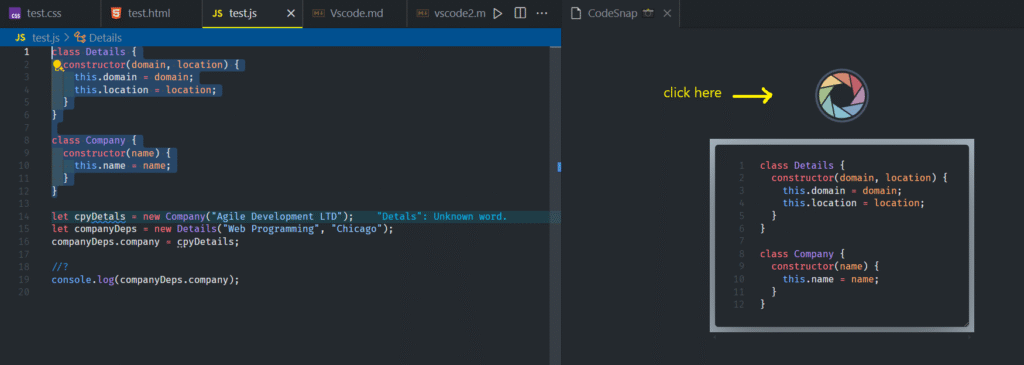
- You highlight the code you want to get a picture of.
- Then you right click this highlighted piece of code, and a menu is displayed.
- At the end of the menu, there is a CodeSnap option. Selecting it splits the editor. In the second half, now there is the piece of code and a button on top of it.
- Pressing the button will take the snapshot of this code. You can download it in your file system and use it as is or edit it.
Peacock
Peacock lets you assign colors to VSCode windows.
For those managing various projects or environments (like front-end and back-end), this is invaluable. You can instantly know which window you’re in just by glancing at the title bar. It’s one of those features you don’t realize you need until you try them.

Setting a color with Peacock is easy:
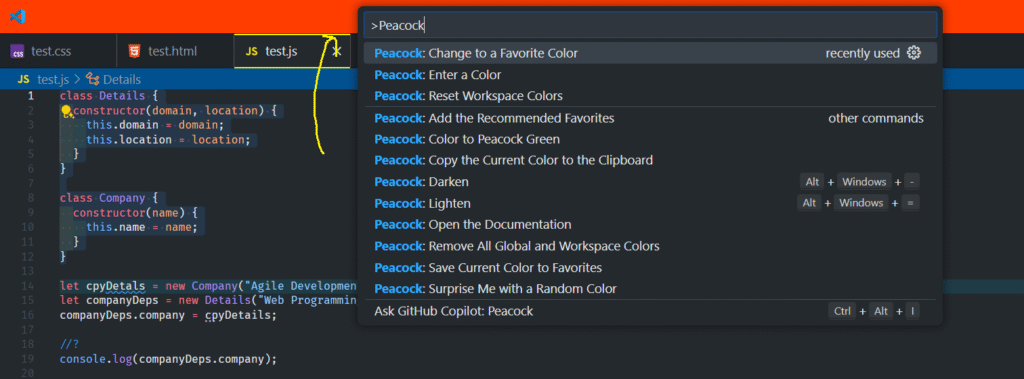
- First, open Command Palette with F1
- Then, type Peacock and choose one of the available color options, set one option yourself, or just enter a favorite color’s hex code.
Path Autocomplete
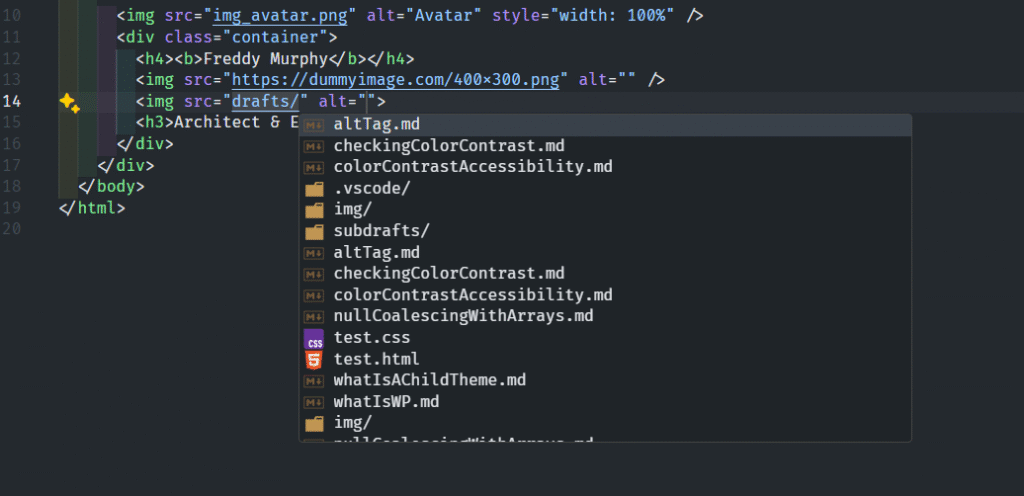
Typing out long file paths is one of those small-but-annoying chores. It’s easy to mess up, especially in deep folder structures. Path Autocomplete fills in the blanks for you, suggesting the correct file or directory as you type.
This extension help us have fewer typos, less back-and-forth and better momentum.
Auto Close Tag
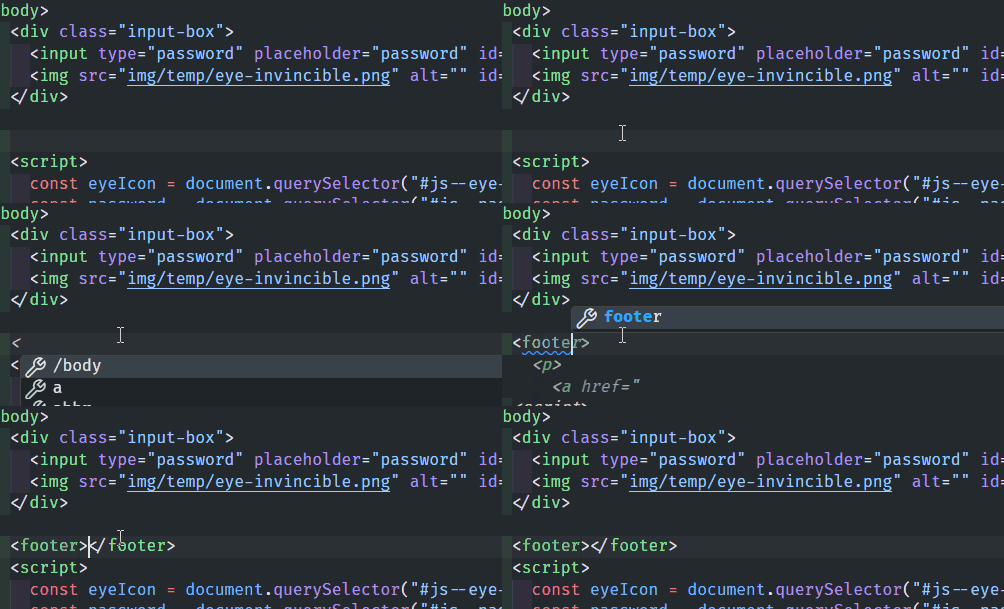
If you’re writing HTML you’ve probably typed something like <div>… and then forgot to close it. Or you closed it three lines later and spent a minute fixing indentation. Auto Close Tag fixes that.
It automatically inserts the matching closing tag the moment you type the opening one. That way it keeps your rhythm flowing which is invaluable when you’re in the zone.
Auto Rename Tag
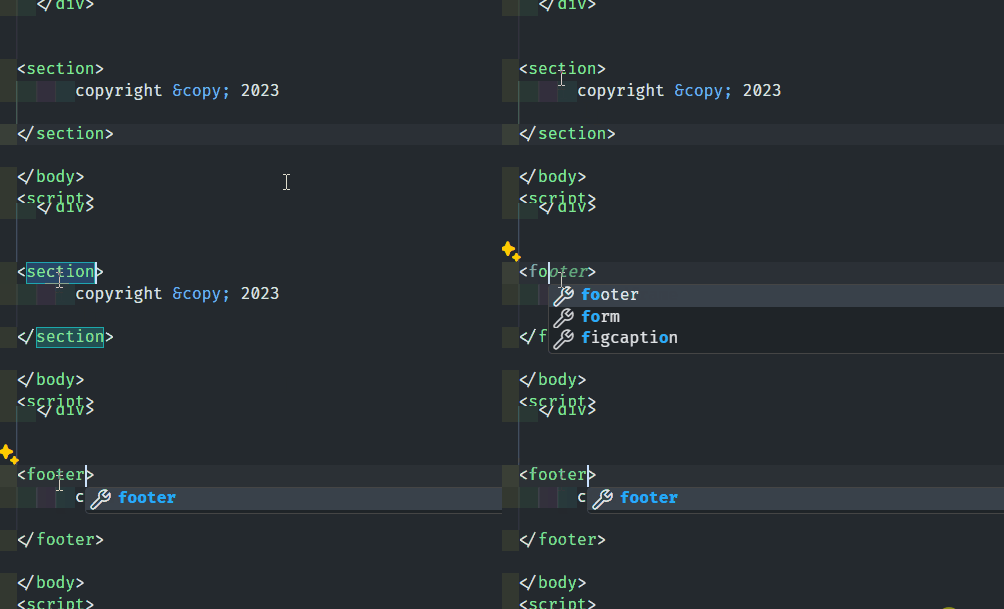
This one’s the perfect partner to Auto Close Tag. Rename the opening <section> to <article>? The closing tag updates instantly. No need to scroll, highlight, retype.
It sounds minor, but every second saved keeps your focus where it should be: on building, not babysitting your markup.
Final thought: Extensions are your co-pilot
These extensions will make writing code easier, faster, and less frustrating.
As you get more comfortable in VSCode, try exploring the Extensions Marketplace. You’ll discover tools for linting, testing, debugging, and even for fun.
Think of your editor not as a static tool, but a customizable workspace. Make it feel like yours.
And if something as trivial as auto-closing a tag can bring peace to your workflow… why not embrace it?