position: relative means the element is positioned relative to where it would normally be in the layout flow.
So instead of being pulled out of its place (like absolute or fixed [internal link]), the element still takes up space, but you can visually shift it using top, right, bottom, or left.
Imagine this:
You have a <div> that would normally sit right in the middle of the page. position: relative lets you move it around without affecting other elements.

And the result:

Why use position: relative ?
Relative positining is used when we want to slightly adjust positioning without breaking the flow (as we’ve seen in the last example), or create a reference point for absolutely positioned children (a very common pattern!)
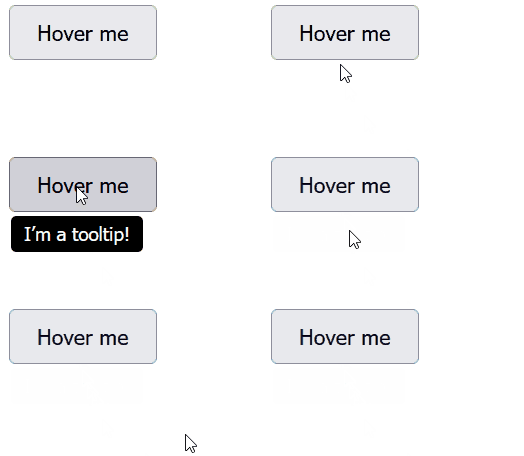
Let’s say you want a tooltip to appear just below a button when hovered. To make sure the tooltip positions relative to the button (not the whole page), you give the button position: relative.
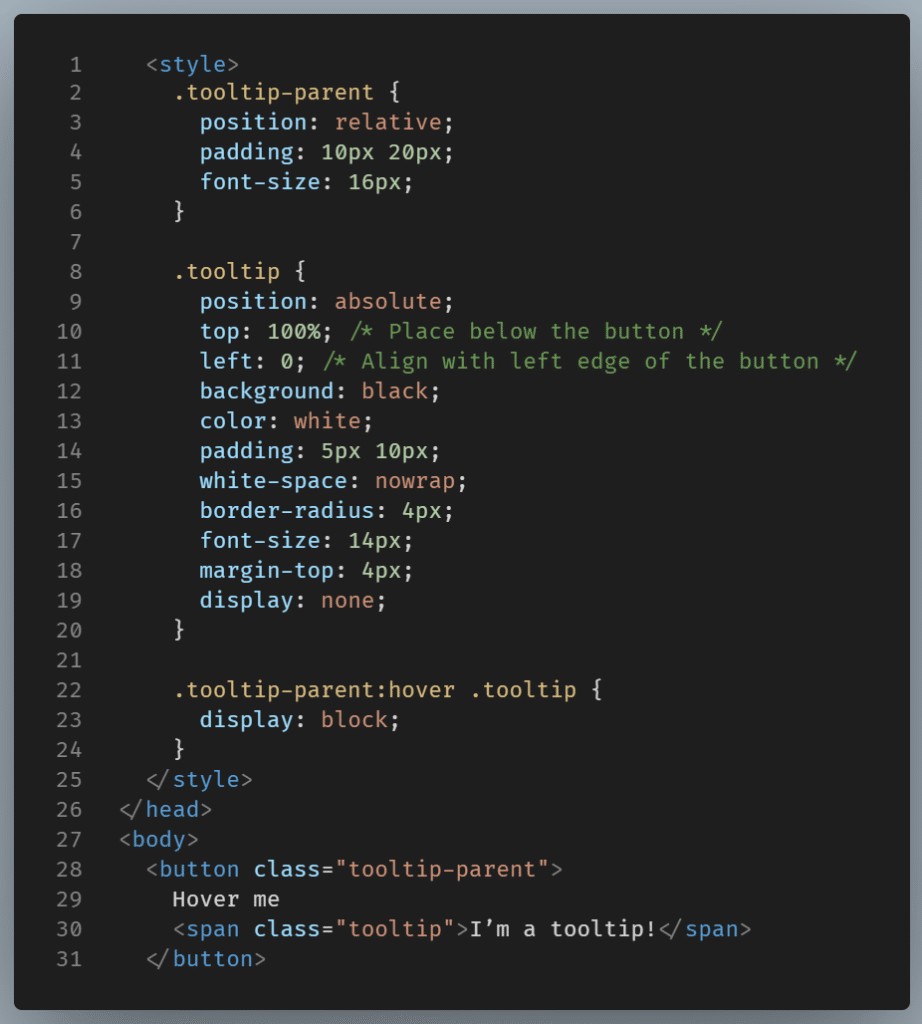
And the result:
Another use-case is to animate or offset UI elements for effect.
Let’s say you want a button to slide slightly upward when hovered, but without affecting nearby elements. position: relative is what you’d use.
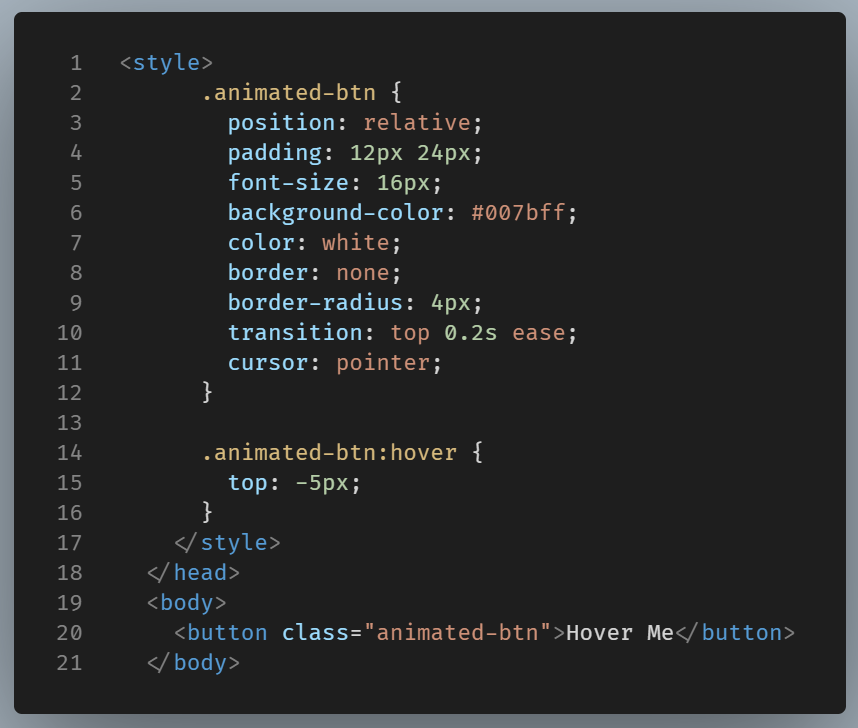
And the result:

Relative position doesn’t stack
A relative element stays in the document flow, unlike absolute, fixed, or sticky.
That means it won’t overlap or float over other elements, unless you explicitly add z-index.
Final Thought
position: relative allows precise control without altering the layout. Think of it as a way to gently swift, not to completely remove. And it’s essential when pairing with position: absolute for complex layouts.