In CSS, margins help create space between elements. But when two vertical margins meet—like between a heading and a paragraph—they don’t stack the way you expect. Instead of adding up, they collapse into a single margin. This is known as margin collapsing.
It can be confusing, especially if you’re expecting a layout to have more spacing than it actually shows. But once you understand the rules, it becomes easier to work with.
The Basic Idea
CSS vertical margins will collapse when they touch. Instead of adding, the greater margin takes precedence, defining the gap between the elements.
Let’s say you have two elements, one after the other:
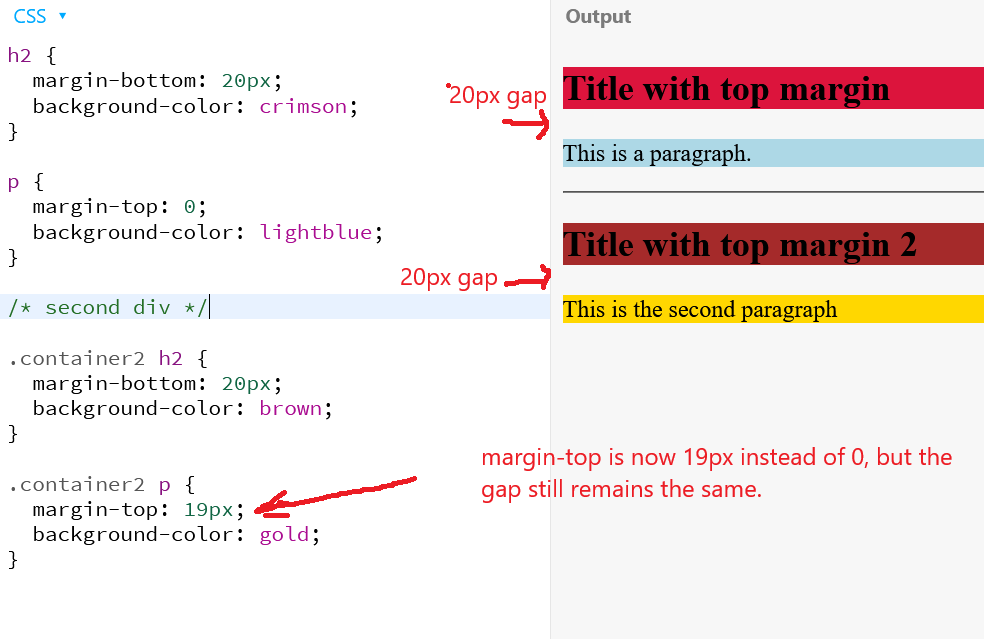
You might expect 39px of space between the h1 and the p in the second container. But the browser will only apply 20px, not 39px.
This only happens in the vertical direction—top and bottom—not with left/right margins.
When Does Margin Collapsing Happen?
Margin collapsing happens between block-level elements that are stacked vertically when there’s no border, padding, or content separating the margins.
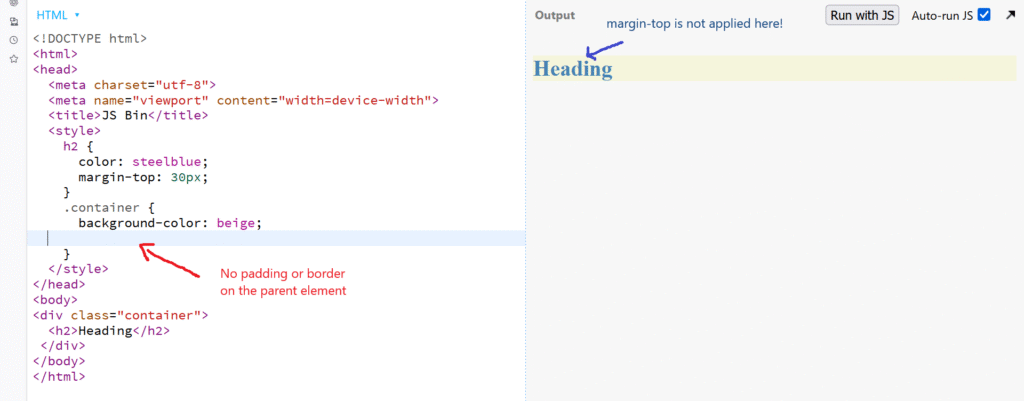
Margin collapsing can happen even in the case of nested elements (like a child with a top margin inside a parent with no padding).
How to Stop Margins from Collapsing
If you want both margins to apply, you can prevent collapsing by:
Adding padding or borders between the elements
Margins only collapse when there’s no visible separation, so a padding or border stops this.
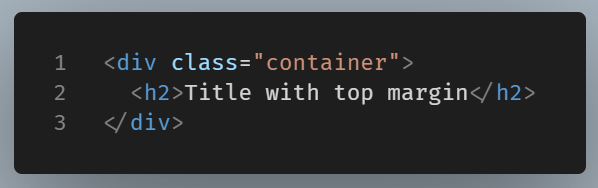
And the result on the browser:
But when we add padding on top of it (even one pixel):
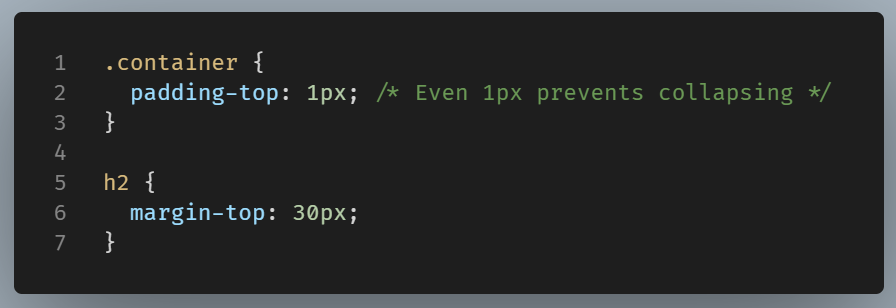
The result now is as expected:
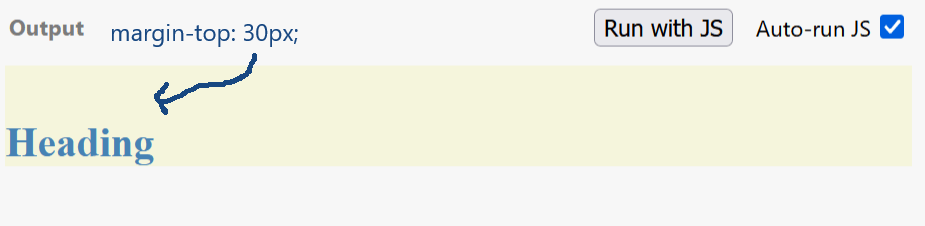
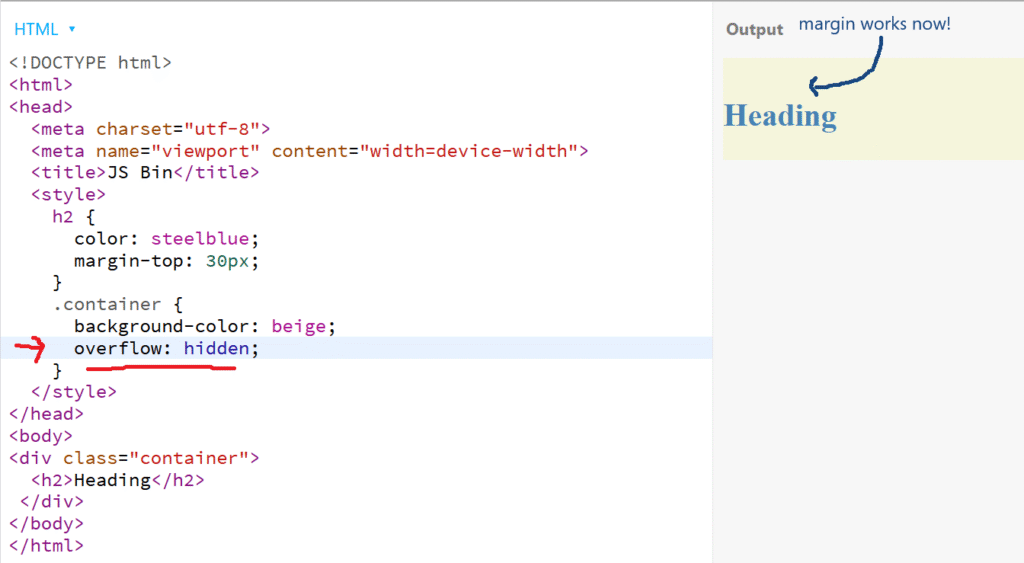
Using overflow: hidden or overflow: auto on the parent
Applying overflow triggers a new block formatting context, which stops collapsing between parent and child.
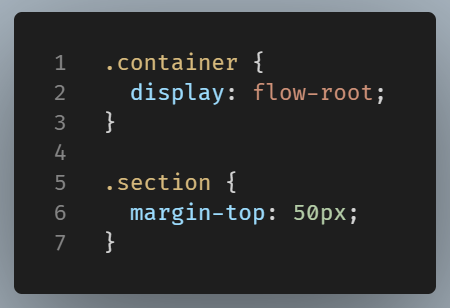
Adding display: flow-root to the parent
This is a modern, clean solution. flow-root also creates a new formatting context, similar to overflow: hidden, but without clipping content.
Final Thoughts
Margin collapsing is one of those quiet behaviors in CSS that surprises many new developers. It’s not a bug—it’s how the browser avoids stacking vertical margins unnecessarily. Once you understand how it works, you can design layouts more precisely and fix spacing issues with confidence.