Why to learn Python in the First place?
Python is a great language to start programming. Compared to most other languages, its syntax is cleaner and easier to grasp.
Python is like a manual written in plain English.
Bellow is an example of python:
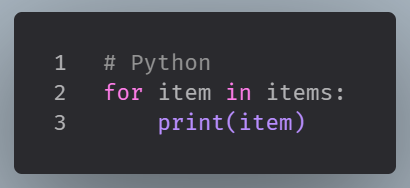
And the same code in PHP:
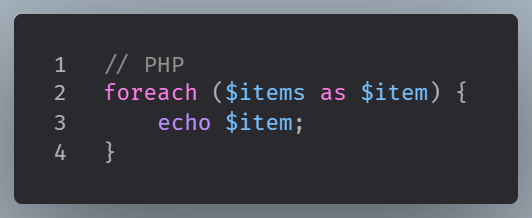
But even if you already know some other languages like JavaScript or PHP is still a great addition to your skill set since it opens new job opportunities and it is easy to learn and fun to use.
I’m a language agnostic. I believe that in programming every language should be treated like a tool in the toolbox. JavaScript and PHP are great for web development.
However, Python thrives in fields like scripting, automation, data processing and AI.
If you are curious about AI -even as a hobby, Python is the prefered language. It is great for building robust, adaptable, or production-ready AI agents. Python is where most cutting-edge research and open-source AI agents are being built.
Also, python is heavily used in writing CLI tools and DevOps tasks.
Learning Python gives you access to a different ecosystem.
It opens doors to:
- Tech jobs outside of web dev
- Data-related roles
- Freelancing gigs involving automation or scraping
How to install python and start coding
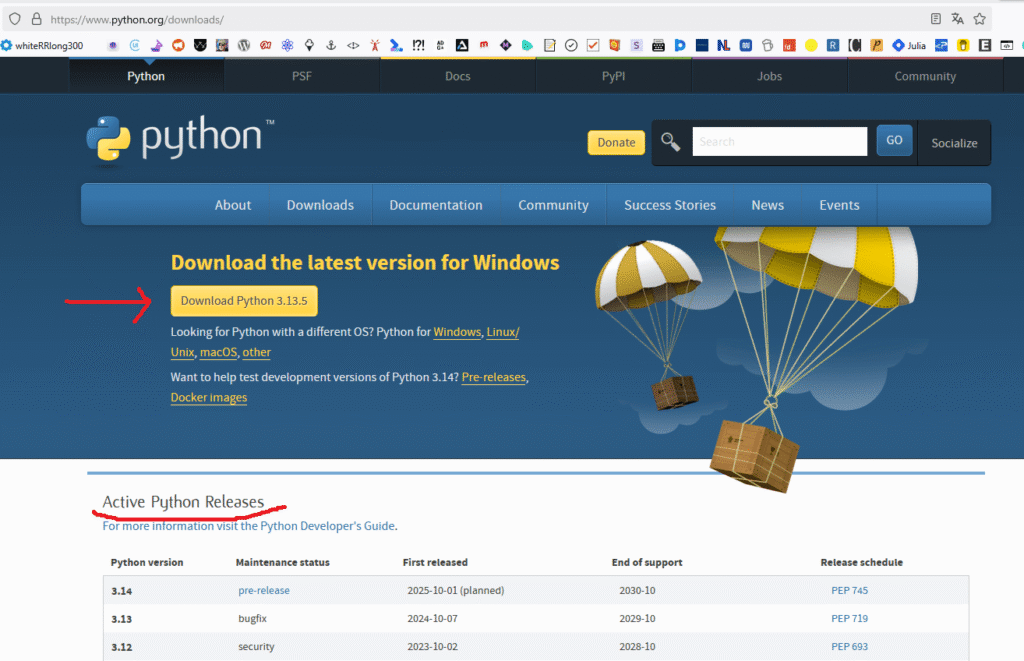
First, go to python.org and from there you can download python.
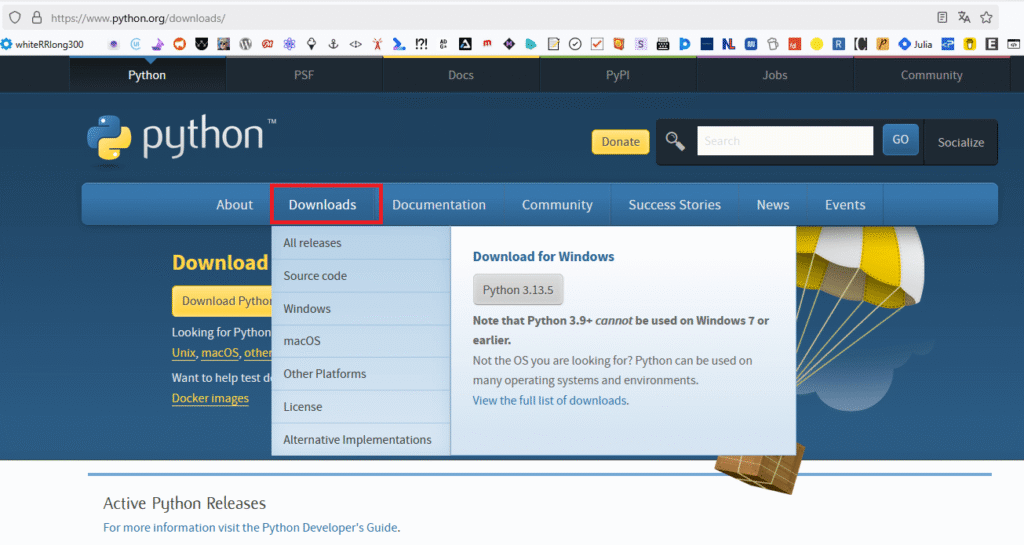
Hovering the Downloads tab, will open a window with options to download Python in macOS and other platforms.
Once the download is complete, you can start the installation process with the help of the python executable file.
Now, you can open your editor and start working with Python.
Mine is Visual Studio Code.
Once opened, go to the extensions marketplace (mine is on the right since it suits me best there, but the default place in on the left.).
Click Ctrl + Swift + X to open it and then on the search input field type “Python”.
A bunch of extensions will be displayed in order for you to choose.
Install Python Language Support from Microsoft.
Python Language Support has extension access points for Intellisense (Pylance), Debugging (Python Debugger), linting, formatting, refactoring, unit tests etc.
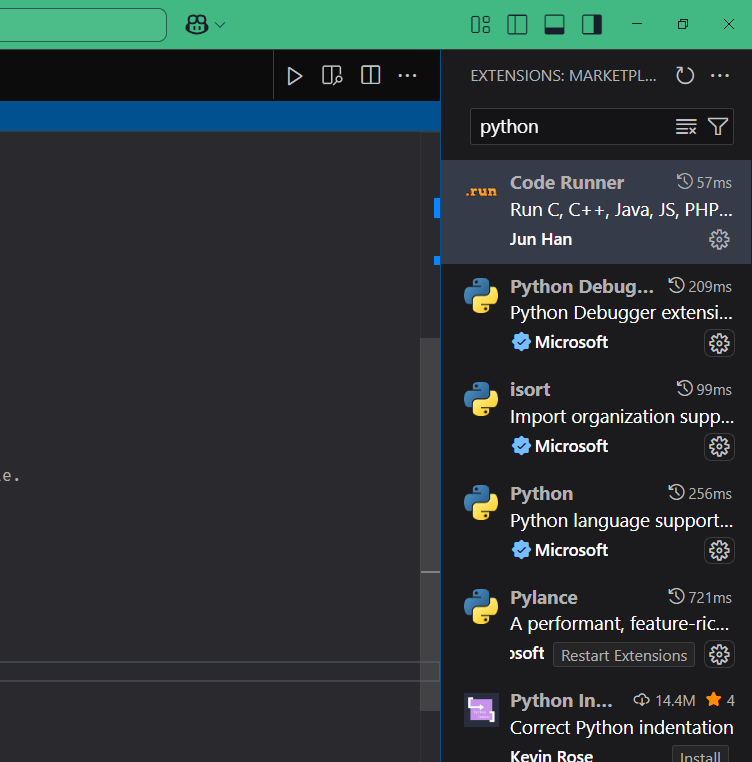
After you have installed this extension we are ready to go on with Python.
The next thing to do is to open the Command Pallet by clicking Ctrl+Shift+P.
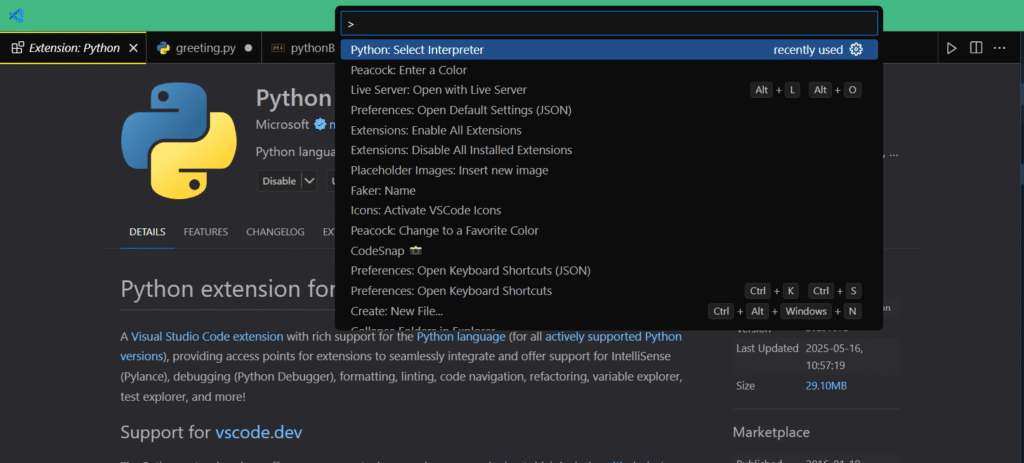
And the Pallet automatically suggests the Python Select Interpreter.
If this suggestion is not visible on the suggestions (it may not be at top), just type Python Select Interpreter on the Command Pallet and it you will find it.
Select it and it is going to display the version of Python you have installed and the path of the installation.
Select this also, and once you do you can now open the terminal window.
First, let’s see if Python has been installed successfully.
Open the terminal with ctrl+shift+`.
On the bottom of the page we can now see the Terminal open.
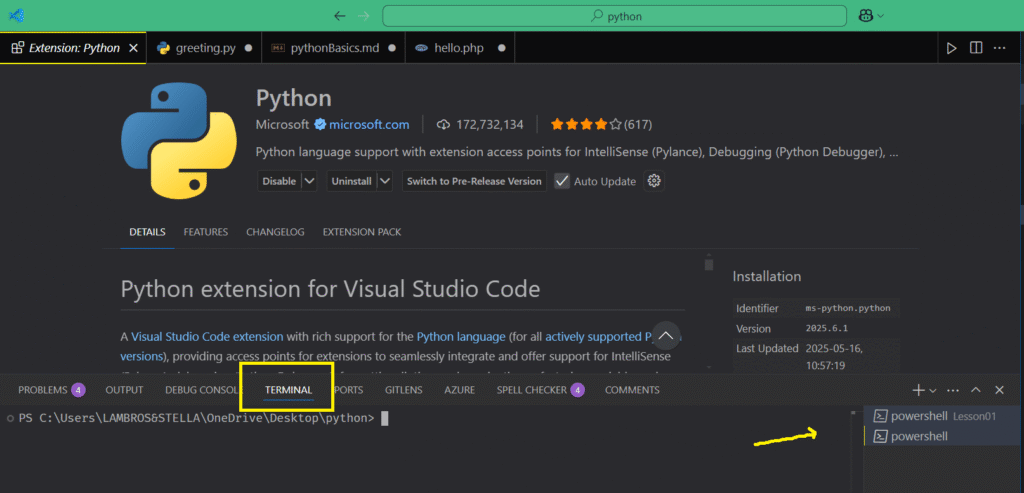
We can have multiple terminals working simultaneously. You notice my terminal is named powershell. This is because PowerShell is my default terminal. If yours is Bash or cmd it will be named after that.
Start a new REPL
In the terminal type py --version.
This will display the version of the installed Python, meaning that everything is ok.
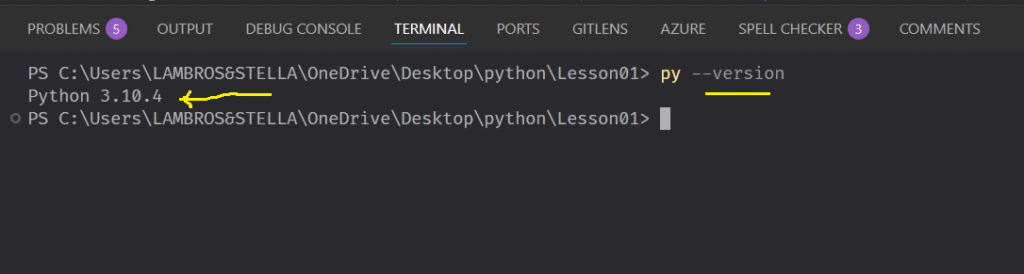
Then type py.
Now we see some information from Python and a line starting with three chevrons.
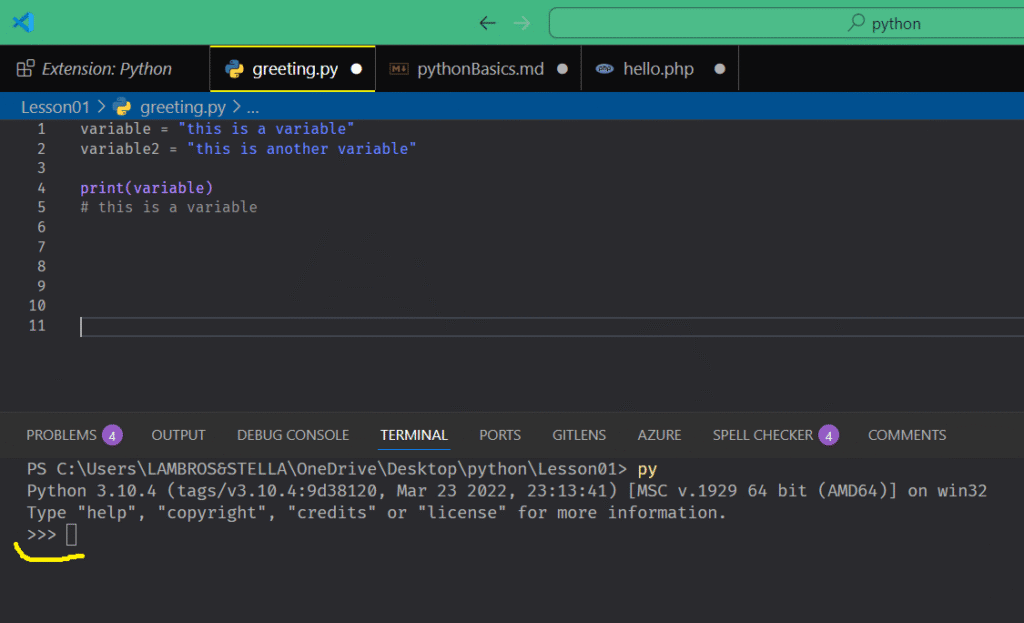
We call this a REPL. A REPL, pronounced “REP-UL”, lets you interact with your computer using Python.
It stands for Read, Evaluate, Print, Loop since this process requires the computer to perform four actions:
- Read your Python commands.
- Evaluate your code to understand its meaning.
- Print the results.
- Loop back (return) to step 1.
The three chevrons (>>>) indicate the computer is ready for your input. So we can run Python commands in this prompt.
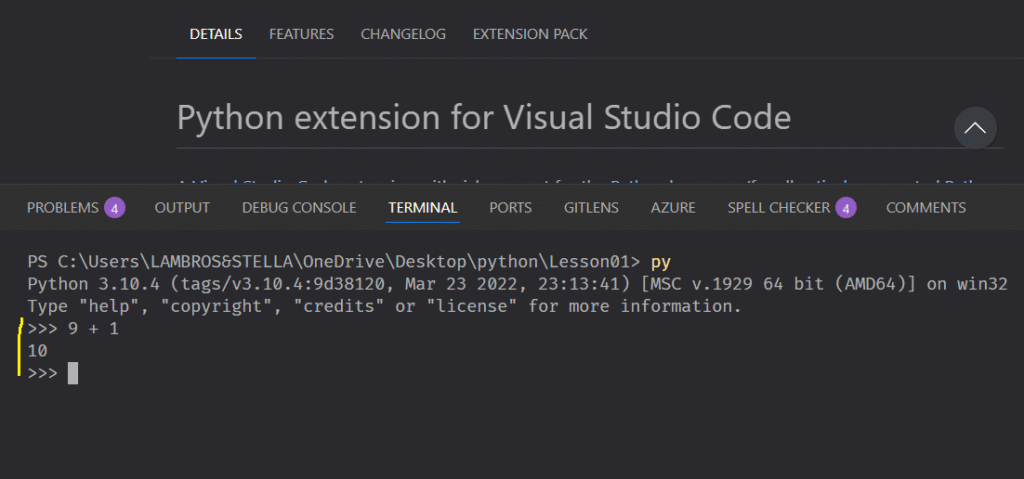
Although we can run commands like this, it is not the preferred way to command the interpreter. We usually do this with files. We write a bunch of commands in a file that Python is going to execute.
Let’s create a file and see how that works.
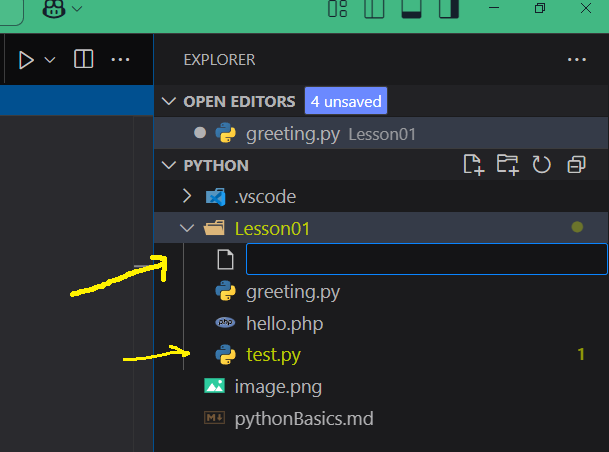
One way to do this is to go to the File Explorer and select a folder.
Then we click the file icon and an input is opened. We can name the file there and define its type. Let’s create the file test.py.
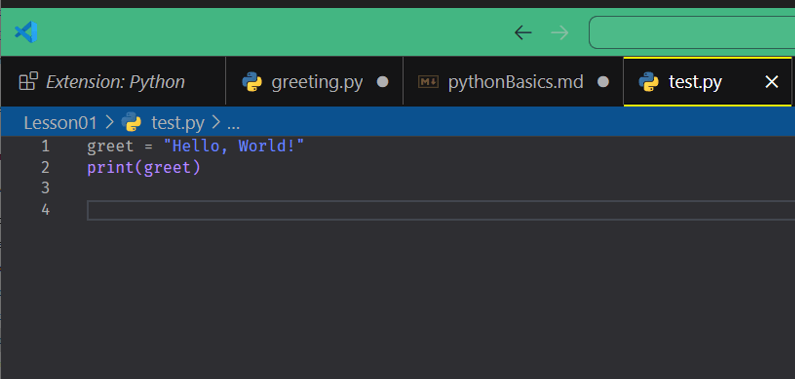
Inside that file I’m going to create a variable named greet and give it a string value, the classic “Hello, World!”.
Then I’m going to command Python to print it, passing this value to the print native function.
Now by using the command py we can execute the code in that file.
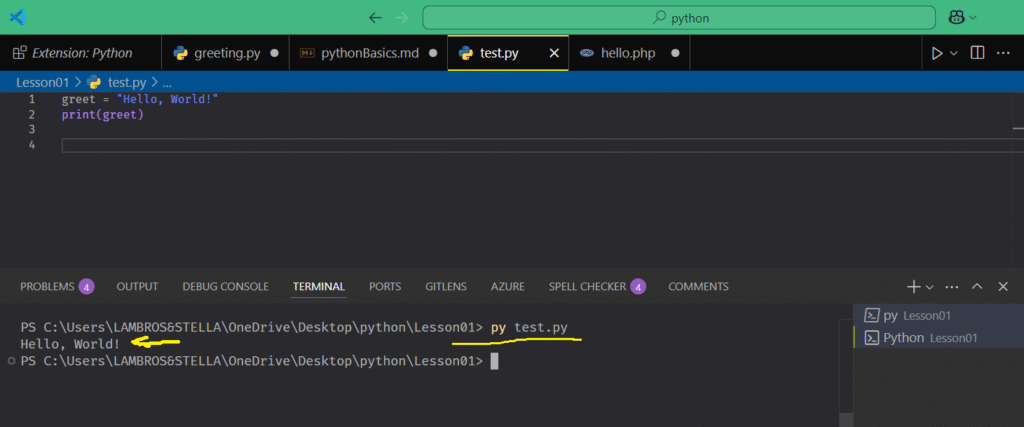
The py command locates and runs the appropriate version of Python installed on your system. For example, py runs the default version, alternativly, py -3.10 runs this specific version provided that is installed in your machine.