The other day while I was trying to install Composer via powershell I got the following error message: “TPHP Warning: copy(): SSL operation failed with code 1. OpenSSL Error messages: error:0A000086:SSL routines::certificate verify failed in Command line code on line 1”
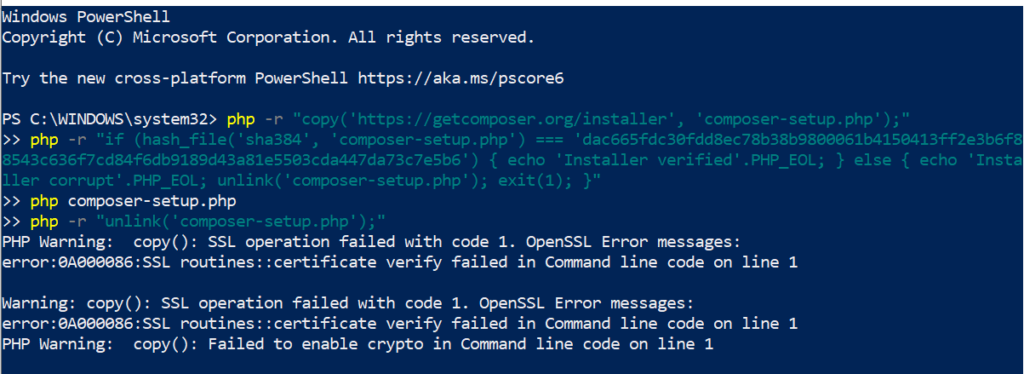
Here how I managed to anticipate this and how you can too, if such a problem arises.
This error means that PHP’s OpenSSL is unable to verify the SSL certificate when Composer tries to download data from https://getcomposer.org.
This is commonly due to an outdated or missing Certificate Authority (CA) bundle in your system.
What follows is a step-by-step guide to fix this in your XAMPP setup on Windows.
Set Up Valid CA Certificate for PHP (XAMPP)
This confirms that PHP’s OpenSSL config is having trouble validating Composer’s SSL certificate.
To fix that, we must make sure the PHP knows where to find a valid, up-to-date Certificate Authority (CA) bundle.
Step 1: Download the Latest CA Bundle
- Go to: https://curl.se/ca/cacert.pem
- Download cert and save it as cacert.pem
- Move the file to this directory: C:\xampp\php\extras\ssl\. If extras\ssl\ folder doesn’t exist just create it.
Step 2: Edit Your php.ini File
First open file in VSCode.
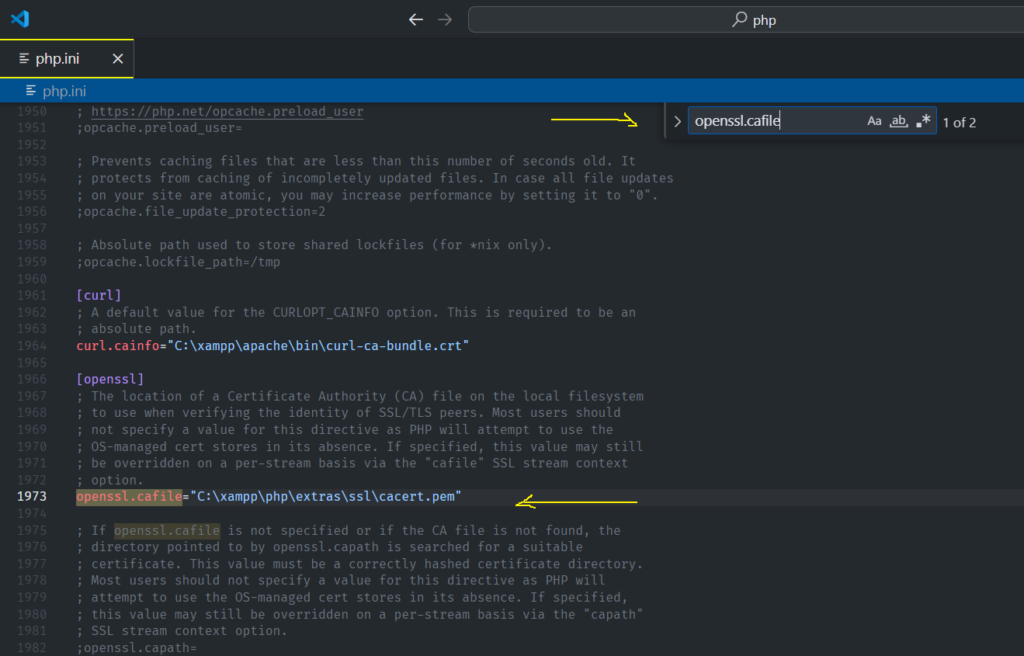
Then search for openssl.cafile.
If not there add the following code:
[openssl]
openssl.cafile = "C:\xampp\php\extras\ssl\cacert.pem"
If there leave it as is.
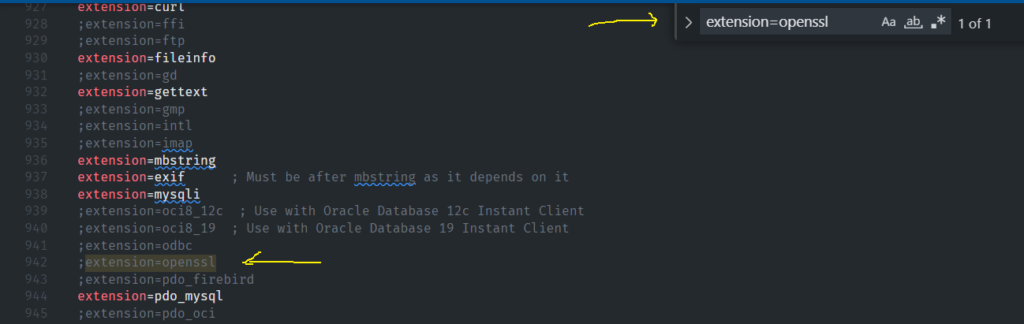
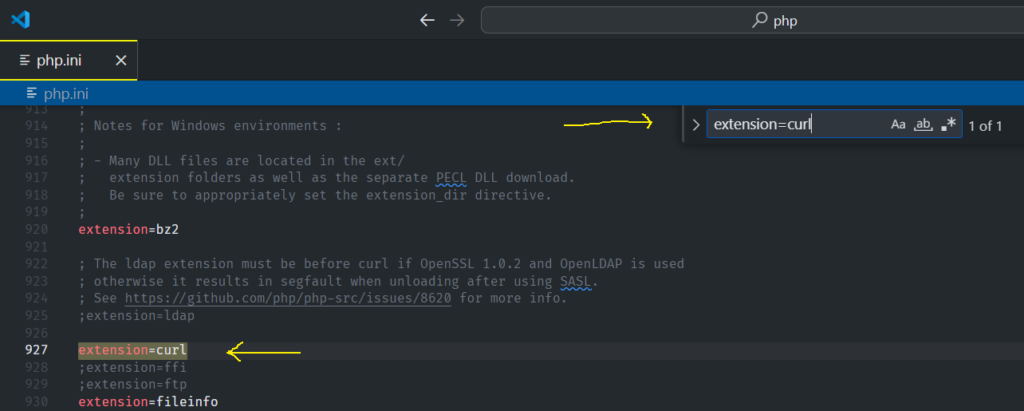
Also check if the openssl and curl extensions are enabled.
Step 3: Restart XAMPP + PowerShell
- Restart Apache via the XAMPP Control Panel.
- Then close and reopen PowerShell in order of changes to php.ini taking effect.
Step 4: Test SSL with PHP
Run this to test if PHP can now access HTTPS:
php -r "copy('https://getcomposer.org/versions', 'test.json');" 
If it downloads successfully and creates a test.json means that it works!
Step 5: Reinstall Composer
Now try installing Composer again.

Let’s confirm the installation!
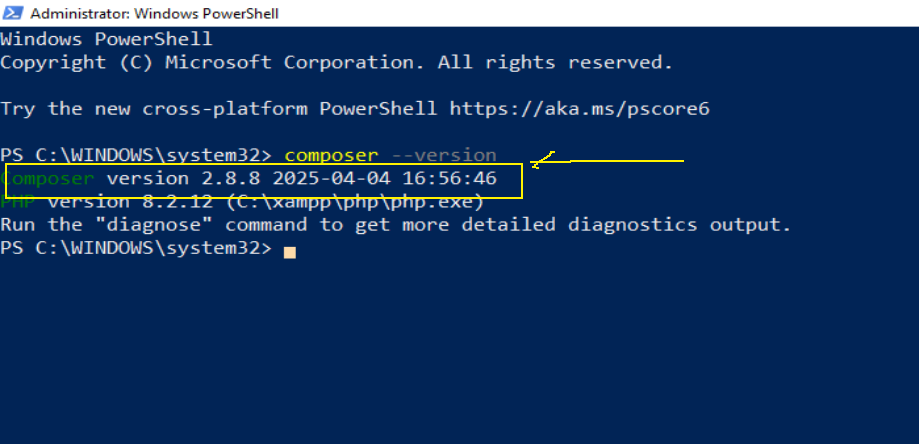
Make sure composer is in your PATH.
If not, you are going to get a message similar to this:
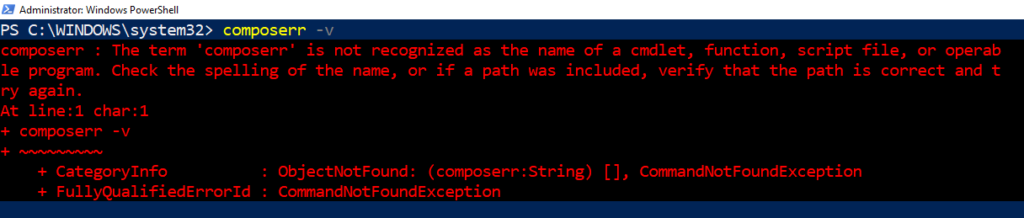
In that case, you have to add this term as a command.
NOTE: If after these steps the problem persists, it might be because your Windows Firewall (or any third-party firewall) is blocking PHP’s HTTPS requests.