A WordPress plugin is a piece of software that adds extra functionality to a WordPress website without modifying the core WordPress files.
With the help of plugins, a user can add features including but not limited to contact forms, latest posts, SEO optimization, caching, and many more, all without coding!
How Do WordPress Plugins Work?
WordPress’s API provides hooks and filters that empower us to extensively customize functionality.
Let’s have a bird’s eye view of how a very simple plugin is built.
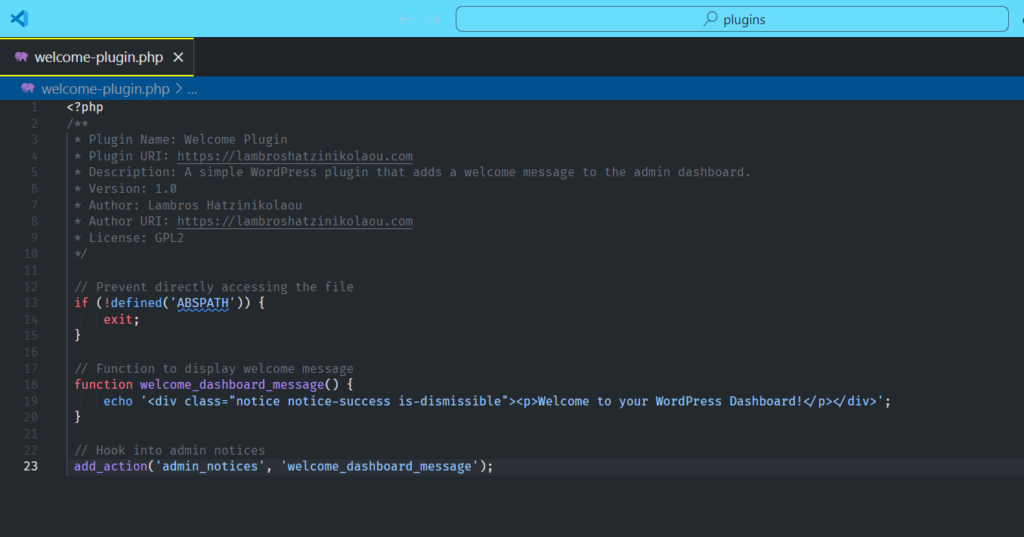
Suppose we are building a plugin that inserts a welcome message every time we visit our WordPress dashboard.
To build a WordPress plugin we can begin by writing a PHP function, for example one that displays a welcome message.
First we visit our WordPress installation directory and navigate to:
wp-content/plugins/
Then we create a new folder, e.g., welcome-plugin, and inside it, create a PHP file:
welcome-plugin.php
Using add_action(), we then hook that function to a specific event, like in our case, printing an admin screen notice.
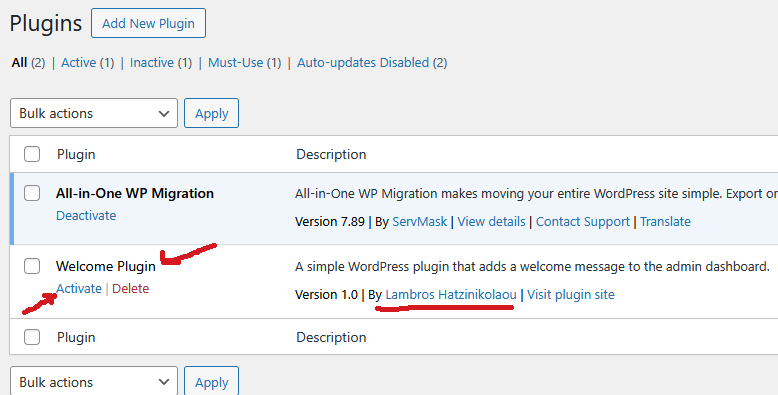
Next we activate the Plugin. We follow the below steps:
– Go to WordPress dashboard → Plugins
– Find “Welcome Plugin” in the list
– Click Activate
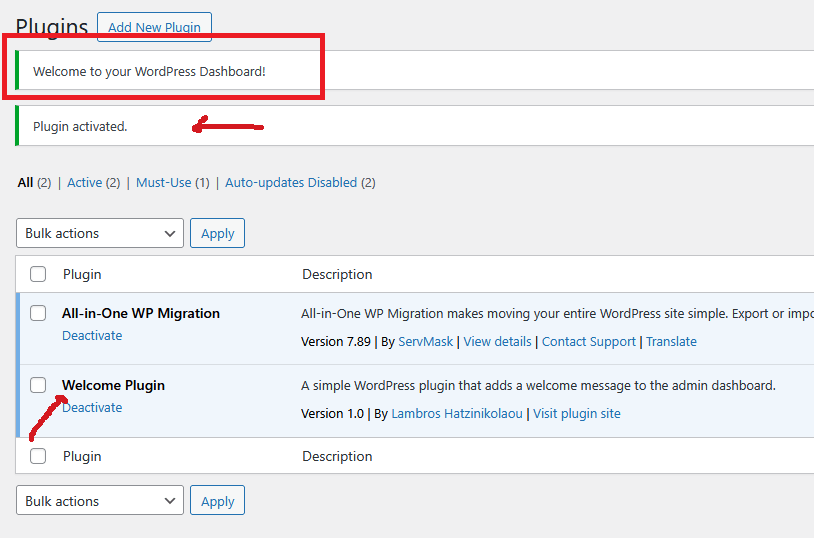
Now, every time we visit the WordPress admin dashboard, we’ll see a welcome message at the top!
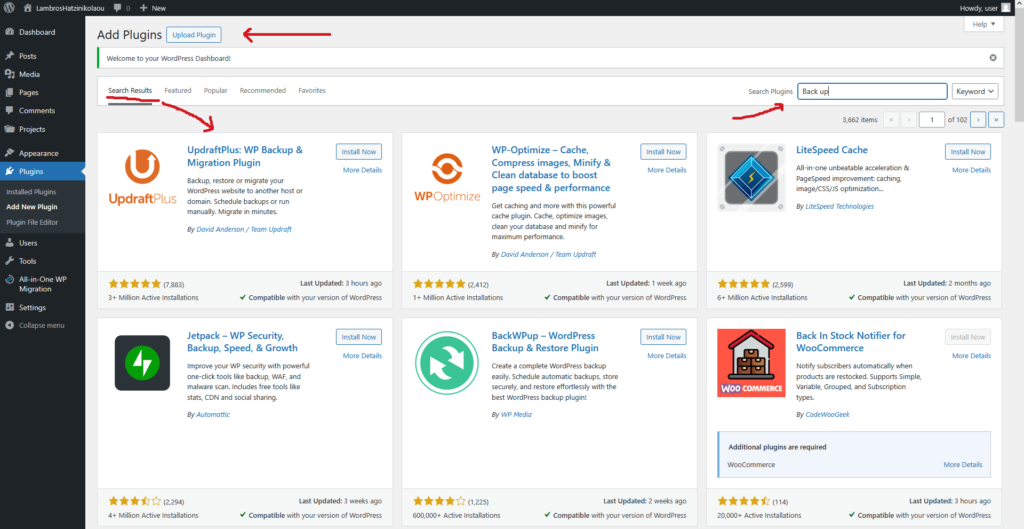
Apart from coding custom plugins or uploading third party ones we can download plugins from the WordPress Plugin Directory.
Common Types of WordPress Plugins
Many types of plugins are available, each serving a different purpose.
Below are several common WordPress plugin types and their uses.
- SEO Plugins – Optimize for search engines (e.g., Yoast SEO, AIOSEO ).
- Security Plugins – Protect against hackers (e.g., Wordfence, MalCare).
- Performance Plugins – Speed up websites (e.g., WP Rocket, W3 Total Cache).
- eCommerce Plugins – Add online store functionality (e.g., WooCommerce).
- Contact Form Plugins – Create forms (e.g., WPForms, Contact Form 7).
- Backup Plugins – Create a backup so we can revert to it if something breaks, get hacked (e.g., AIO WP Migration & Backup, Duplicator).
- Social Media Plugins – Add sharing buttons or/and displaying feeds (e.g., Social Snap, Revive Old Posts).
Risks & Best Practices
Using third party plugins isn’t 100% safe.
If malicious code is injected into a compromised plugin, it can allow hackers to take control of our website.
However, adhering to best practice recommendations can lower that risk.
Use up to date plugins
We should only use plugins from reliable sources, like the WordPress plugin directory or established developers.
Check a plugin’s reliability by looking at user ratings, reviews, and frequency of updates.
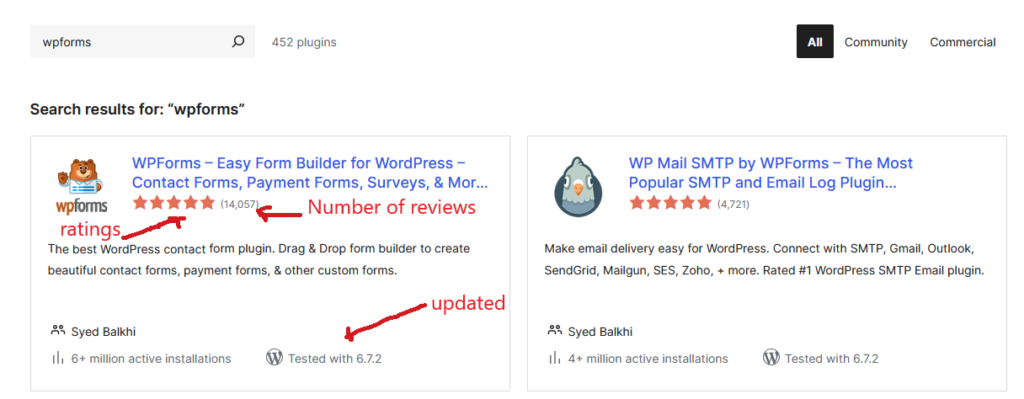
Use plugins from reputable sources
For better security, we better stick to up to date, well-supported plugins; avoid outdated ones.
Some reputable places to find WordPress Plugins is the WordPress Plugin Directory for Free plugins, and Codecanyon for Premium plugins.
Could too many plugins be a problem?
Many users wrongly believe that a large number of installed plugins may reduce website speed.
However, in reality, poor plugin code is the root cause of performance degradation and not the number of plugins.